
Hard Drive Explained: HDD vs SSD vs SSHD and How to Choose
If you have ever upgraded a laptop, built a PC, or set up a NAS, you have faced the question: which hard drive should I buy? The term "hard drive" gets used loosely, but it actually covers three very different technologies: HDD, SSD, and SSHD. Choosing the wrong one can mean slow performance, wasted money, or even data loss. This guide breaks down what each type is, how they differ, and how to pick the right one for your needs.
What Is a Hard Drive?
A hard drive is a device that stores data permanently. Unlike RAM, which forgets everything when you turn off the power, a hard drive keeps your operating system, files, photos, and applications safe until you delete them. In everyday language, "hard drive" usually means any internal storage device. But technically, it includes mechanical hard disk drives (HDD), solid-state drives (SSD), and hybrid drives (SSHD). Even though SSDs have no moving parts and no spinning disks, they are still commonly called hard drives. Understanding the differences matters because your choice affects speed, capacity, durability, and cost. A drive that is perfect for a gaming PC may be a terrible choice for a Server, and vice versa.
HDD, SSD, SSHD: The Core Differences
Here is a quick breakdown of the three main types:
-
HDD (Hard Disk Drive): Uses spinning magnetic platters and a moving read/write head. It offers huge capacity at a low price per gigabyte. But it is slow, sensitive to shocks, and makes noise. Best for bulk storage, backups, and cold data.
-
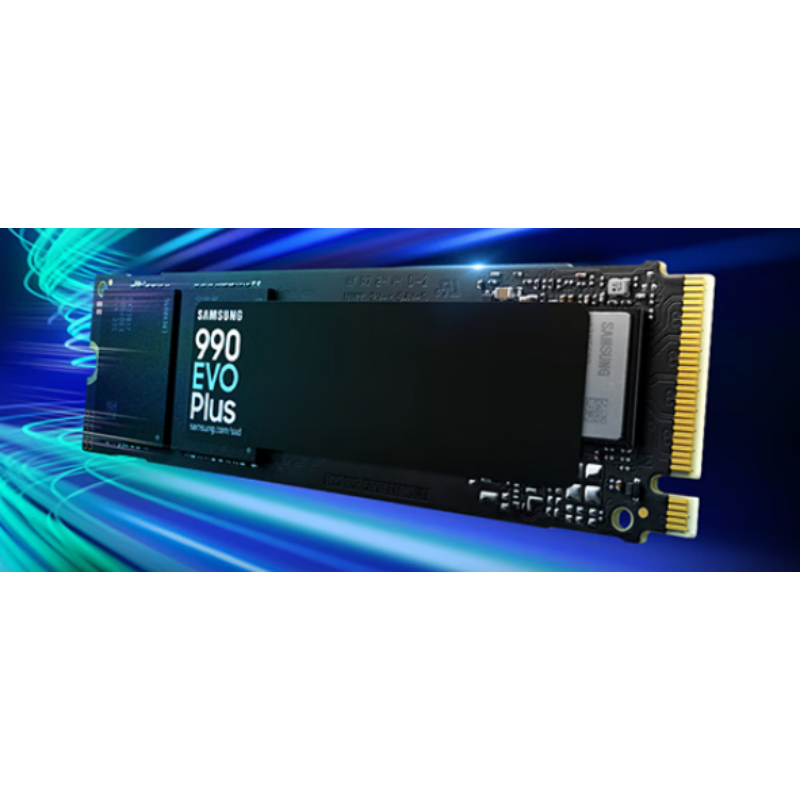
SSD (Solid-State Drive): Uses NAND flash Memory chips with no moving parts. It is much faster, silent, and resistant to vibration. It costs more per gigabyte and has a limited write lifespan. Best for operating systems, games, and high-performance applications.
-
SSHD (Solid-State Hybrid Drive): Combines a traditional HDD with a small SSD cache. Frequently used files load faster, but overall performance still lags far behind a true SSD. It is largely a legacy option today.
These are not simply old versus new. Each has strengths. HDD wins on cost and capacity, SSD wins on speed and responsiveness, and SSHD was a compromise that has mostly been replaced by affordable SSDs.
Performance, Lifespan, Price, and Use Cases
Performance is where SSD and HDD differ most dramatically. An SSD can handle thousands of random read/write operations per second, while an HDD struggles with even a few hundred. That is why a computer with an SSD boots in seconds, while an HDD can take minutes. NVMe SSDs, which connect directly to the PCIe bus, are even faster than SATA SSDs. For everyday tasks like opening apps, loading games, or searching a database, the difference is immediately noticeable. HDDs are better at sequential transfers—copying one huge file—but they fall apart when many small files are involved.
Lifespan is another key difference. SSDs have a rated write endurance, measured in TBW (Terabytes Written) or DWPD (Drive Writes Per Day). Once that limit is reached, the drive may become read-only or fail. HDDs, on the other hand, are mechanical and can fail due to physical wear, head crashes, or motor failure. Both can die without warning, but SSDs often give less warning before total failure. Data recovery from a failed SSD is usually harder and more expensive than from an HDD.
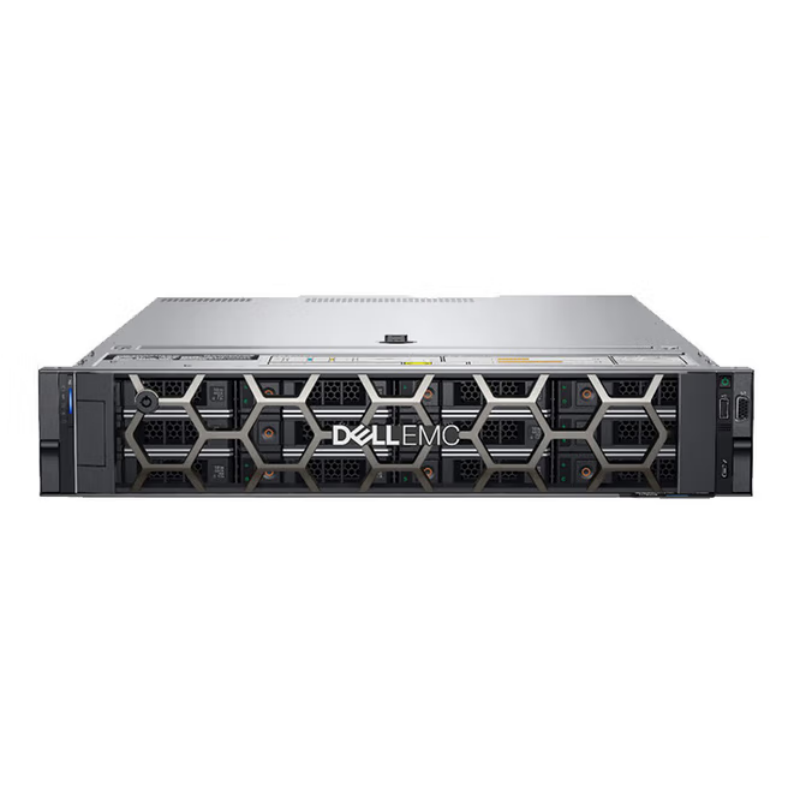
Price is straightforward: HDDs are the cheapest per terabyte. SSDs cost more per gigabyte, though prices continue to fall. SSHDs sit in the middle but offer poor value today because entry-level SSDs are so affordable. When choosing, think about your use case. For a system drive, SSD is almost always the right answer. For a backup drive, surveillance storage, or a media library, a large HDD makes more sense. For NAS devices, look for CMR (Conventional Magnetic Recording) drives rather than SMR (Shingled Magnetic Recording), and choose drives rated for 24/7 operation. For servers, you must match the interface—SAS, SATA, or NVMe—and check the vendor’s compatibility list. SSHDs are now mostly found in older laptops or budget upgrades, and they are rarely the best choice.
How to Choose the Right Hard Drive
Use this simple checklist to avoid mistakes:
Identify your primary use: System drive, game library, video editing cache, backup, or cold storage. Speed matters most for the first three; capacity and cost matter most for the last two.
Check your interface: SATA, SAS, M.2 NVMe, and U.2 are not interchangeable. Confirm what your motherboard, laptop, or server supports before buying.
Balance capacity and budget: A common strategy is a small SSD for the operating system and a large HDD for files. This gives you speed where you need it and space where you want it.
Look at reliability and warranty: Enterprise drives list DWPD, TBW, MTBF, and compatibility. NAS drives focus on vibration tolerance and workload ratings. Consumer drives are fine for light use but may not last in heavy-duty environments.
If you are upgrading a laptop, check whether it has a SATA bay or an M.2 slot. If you are building a desktop, consider a 500GB or 1TB NVMe SSD for the system and a 4TB or larger HDD for storage. For NAS and servers, never buy a random consumer drive without checking compatibility and warranty channels.
Common Misconceptions
Many people believe SSDs never fail. They do—and when they fail, data recovery is often impossible or very costly. Others think HDDs are always slow. Large HDDs can have decent sequential speeds; they just struggle with random access. SSHDs are often marketed as "fast and huge," but with SSD prices so low, the hybrid advantage has mostly disappeared. Finally, some users think one drive is enough. The truth is, no single drive is immune to failure. Always keep at least one backup, and monitor drive health using SMART tools.
Conclusion
A hard drive is any device that stores data permanently, but the three main types—HDD, SSD, and SSHD—serve very different purposes. HDDs offer huge capacity at low cost and are ideal for backups and cold storage. SSDs deliver speed, silence, and shock resistance, making them perfect for operating systems and high-performance tasks. SSHDs are a fading compromise. When choosing, start with your use case and interface, then balance capacity, speed, reliability, and budget. And no matter which drive you pick, remember that backups and health monitoring are more important than any single drive's specifications.
FAQ
1: Is a hard drive the same as an SSD?
Not exactly. "Hard drive" is a general term that includes HDDs, SSDs, and SSHDs. Strictly speaking, an SSD has no moving parts, but it is still commonly called a hard drive in everyday conversation.
2: Which is better for a system drive: HDD, SSD, or SSHD?
Choose an SSD. System drives benefit most from random read/write speed and responsiveness. An NVMe SSD is faster than SATA, but even a basic SATA SSD will transform an older computer. HDDs are better for storage, and SSHDs are no longer a mainstream choice.
3: What should I look for when buying a hard drive?
First, check the interface (SATA, SAS, M.2 NVMe, U.2). Then consider capacity, speed, endurance (TBW/DWPD), warranty, and compatibility. For NAS, check CMR vs SMR. For servers, always consult the official compatibility list.
4: Do I still need an HDD ?
Yes, for many people. HDDs remain the most cost-effective option for large backups, surveillance footage, cold data, and archival storage. But for operating systems, games, and frequent file access, an SSD is the better choice.